
How It Works
Set Up Your Admin Portal
Follow these five steps to get Traffic Lite set up across your school or district.
1
Start Here
Add Your Staff
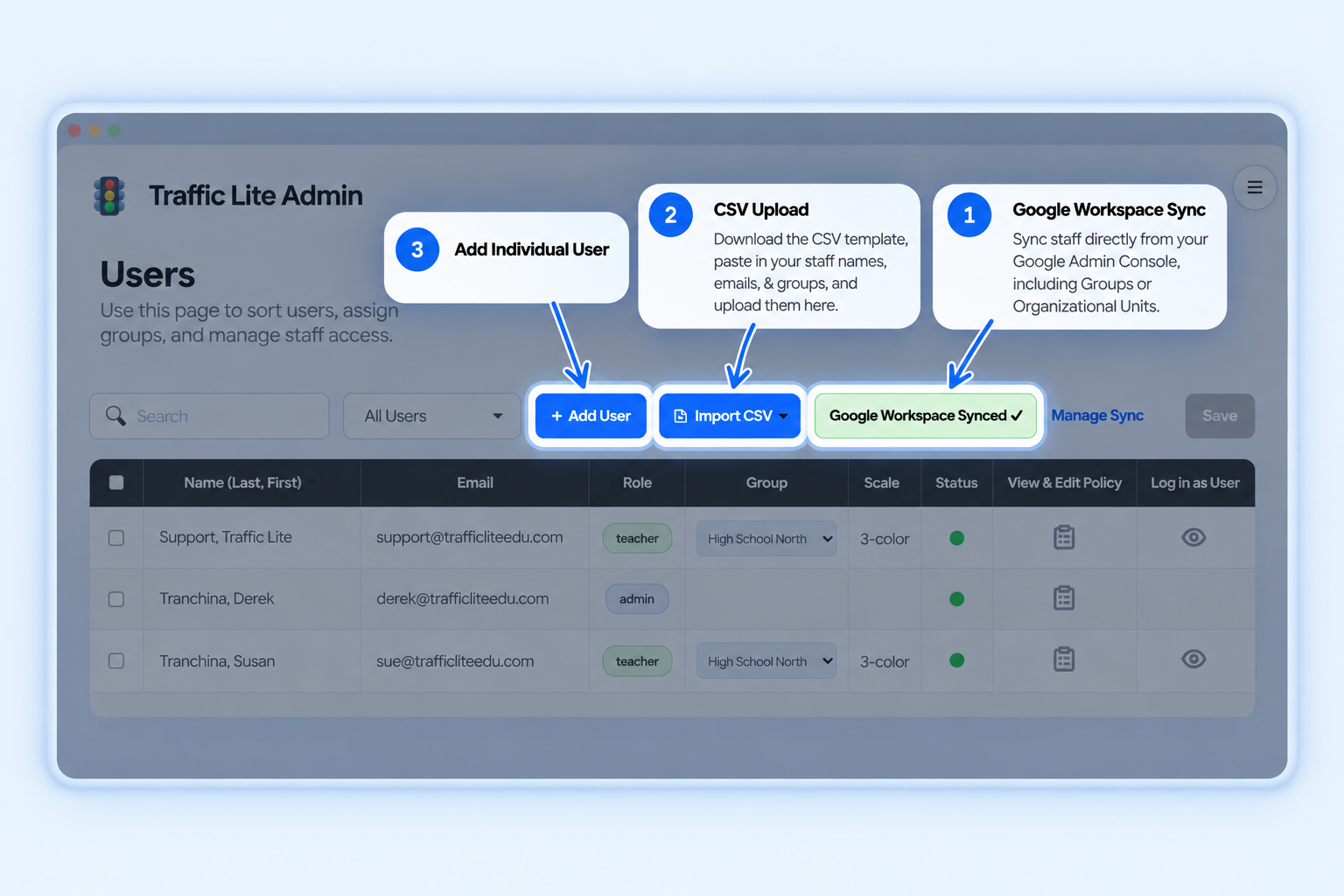
- ✓ Open the Users Page in your Admin Portal and choose one of the following options:
- 1 Google Workspace Sync: sync staff directly from your Google Admin Console, including Groups or Organizational Units.
- 2 CSV Upload: Download the CSV template, paste in your staff names, emails, & groups, and upload them here.
- 3 Use Add Individual User to add staff individually.
Tip:
For your initial setup, use Google Workspace Sync or CSV Upload
instead of adding users one at a time. Users will appear as
inactive until they install Traffic Lite and sign in.
3
Customize
Set Your Policies
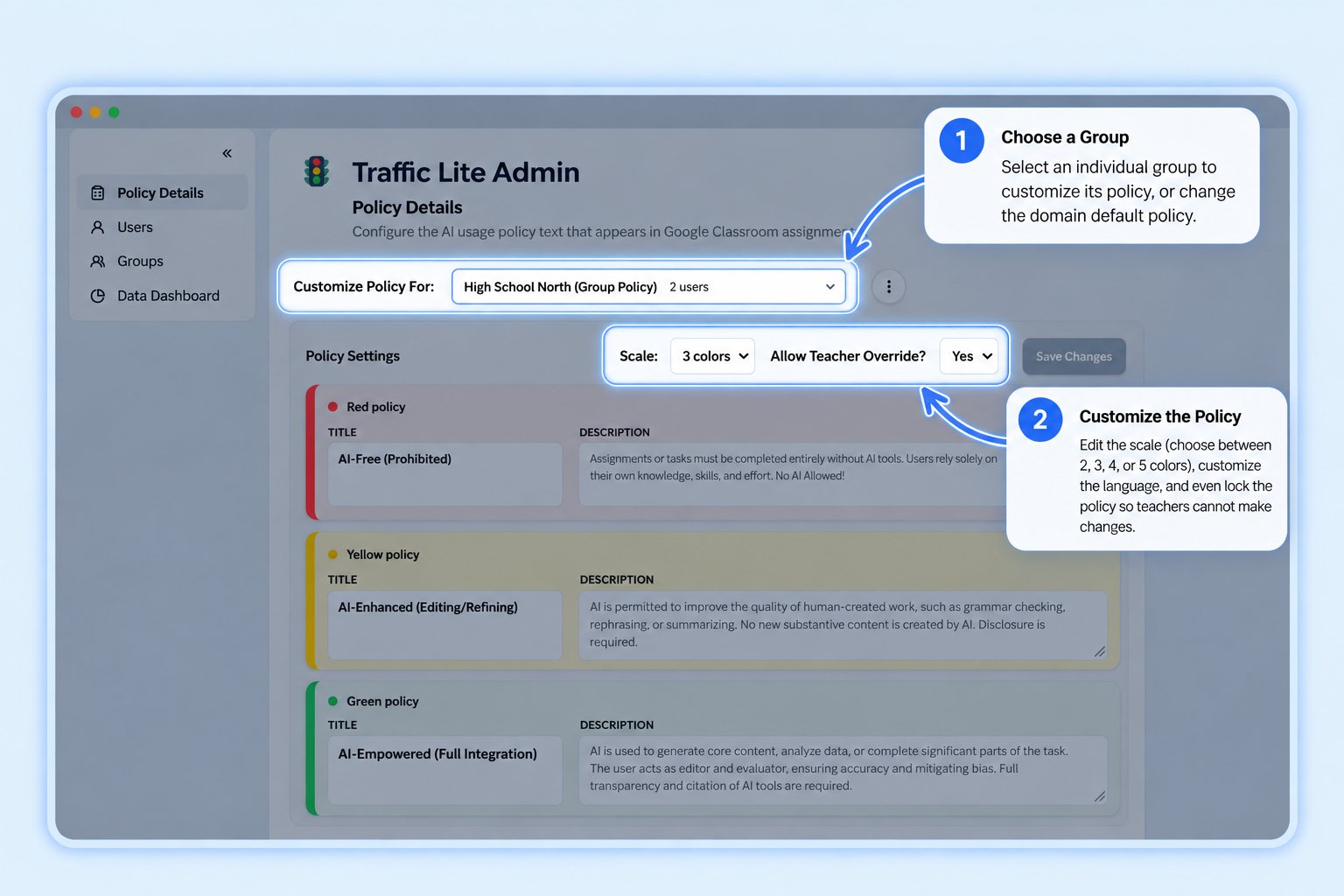
- ✓ Open Policy Details for your domain or group.
- ✓ Choose your AI-usage scale and customize the policy titles and descriptions.
- ✓ Copy policies from one group to another when they use the same expectations.
- ✓ Review your teacher override settings and choose how much flexibility teachers should have.
Keep it simple:
If most groups use the same policy, create it once and
copy it to the other groups. You can always make changes later.
5
See It in Action
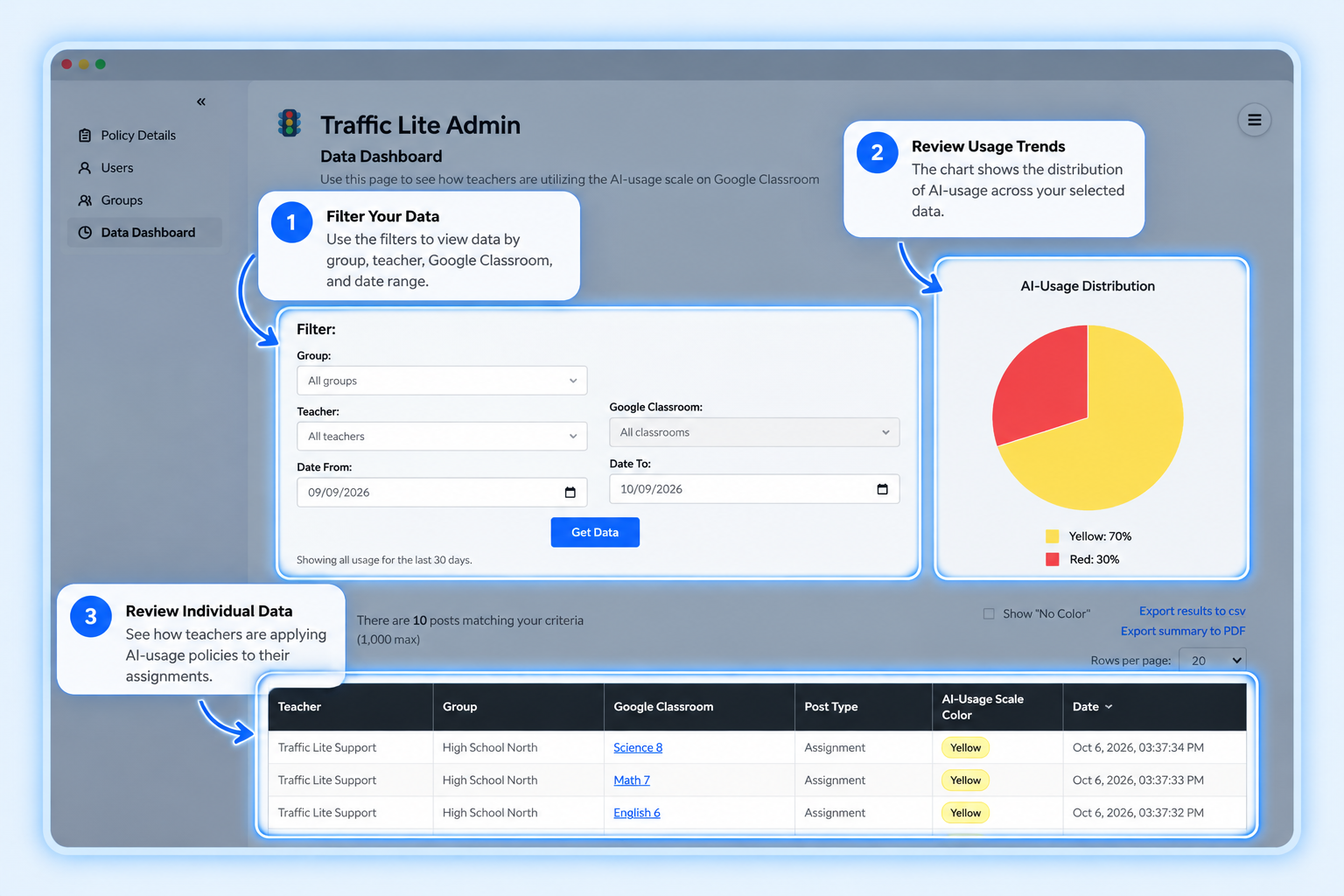
Review Your Data Dashboard
- ✓ Open your Data Dashboard to see Traffic Lite usage across your organization.
- ✓ Review how teachers are applying AI-usage policies to their assignments.
- ✓ Filter your data by groups to see how implementation varies across your organization.
- ✓ Use the data to guide support, conversations, and professional learning.
Give it a little time:
Your dashboard becomes more useful as teachers begin using
Traffic Lite regularly and more assignments are added.
2
Get Organized
Review Your Groups
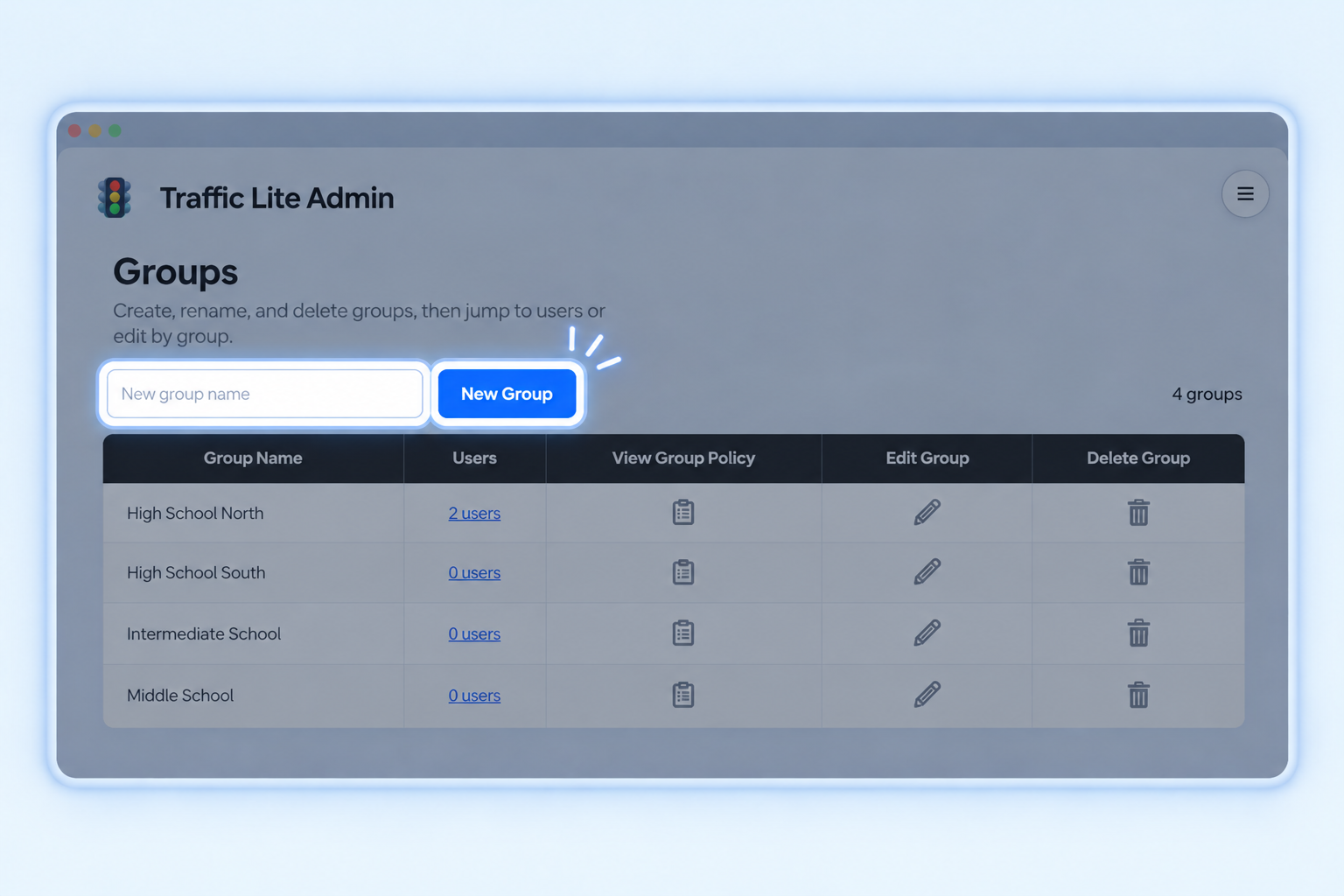
- ✓ If groups were included during your import, review them for accuracy.
- ✓ If groups were not imported, open Groups and create them manually.
- ✓ Make sure each teacher is assigned to the appropriate group.
Why use groups?
Groups let you assign different policies to different sets of teachers.
Organize them by school, grade level, department, or whatever makes
sense for your organization. Teachers who are not assigned to a group
will use the Domain Default Policy.
4
Roll It Out
Get Teachers Started
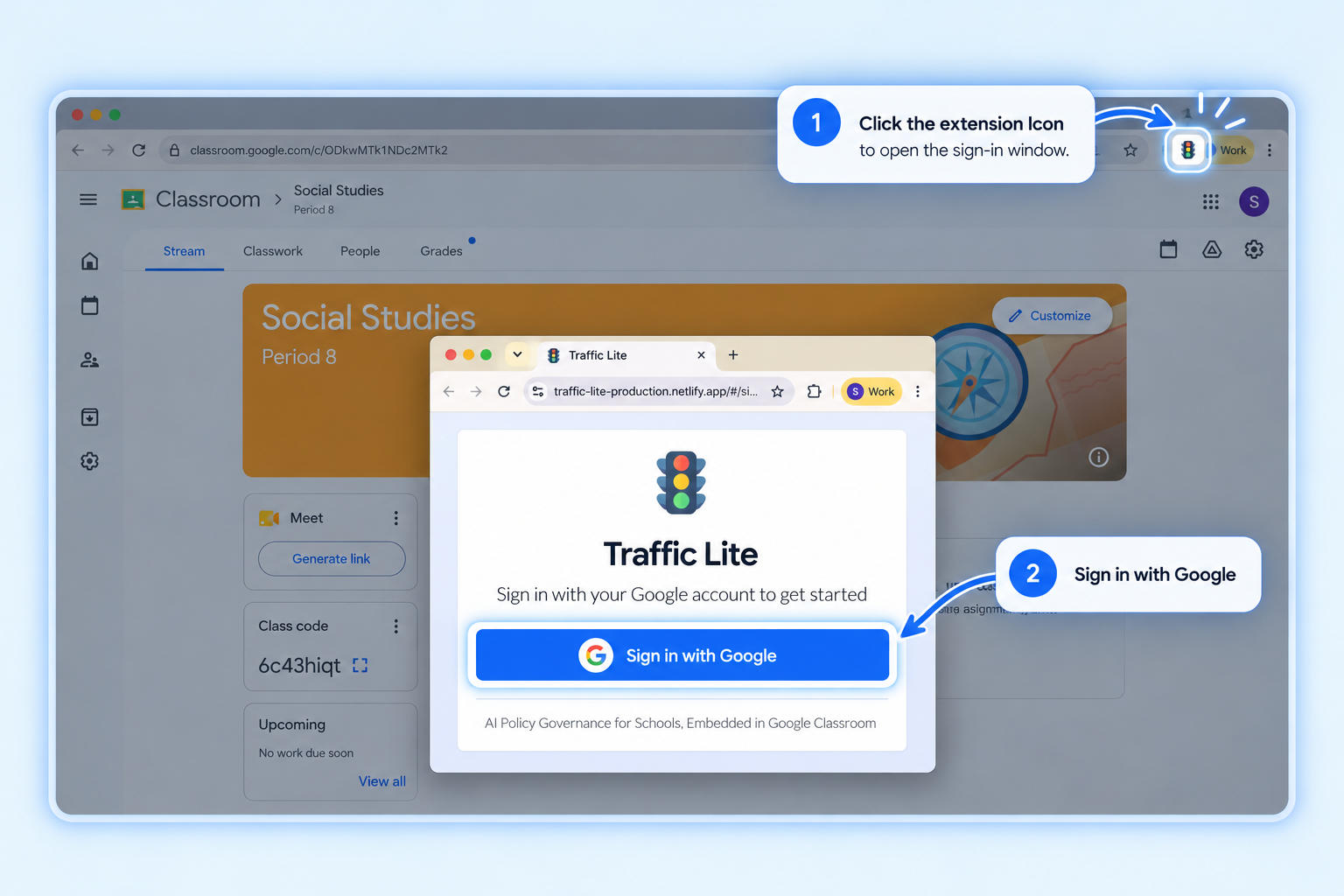
- ✓ Make the Traffic Lite Chrome extension available to teachers by deploying it through the Google Admin Console or sharing the installation link.
- ✓ Teachers click the Traffic Lite icon in Chrome and Sign in with Google.
- ✓ Once signed in, teachers can use Traffic Lite directly inside Google Classroom.
Important:
Even if the extension is deployed automatically, each teacher
still needs to open Traffic Lite and sign in to authorize access.
You're Ready
That’s it!
Your Traffic Lite Admin Portal is set up and ready to go.
As teachers begin using Traffic Lite, return to your Data Dashboard to see how your AI-usage policy is being put into practice across your school or district.